Guide Research
Website Launch Checklist 2026: 40 Things to Check Before You Go Live
 Anna · Designer & web developerUpdated 2026-11-06 · How we test
A 40-point website launch checklist: domain, SSL, Search Console, sitemap, analytics, legal pages, forms, speed, mobile and backups. Copy it for your next site.
Before a website goes live, check eight areas: the domain and DNS, SSL and redirects, search setup (Search Console, sitemap, robots.txt), analytics, legal pages and cookie consent, forms and email, speed and mobile layout, and backups. Most launch problems come from three of them: a robots rule left over from staging, a contact form that sends to nowhere, and a missing redirect from the old site.
Below is the full list in 40 points, grouped so you can work through it in one afternoon. It works the same for a site built in Framer, WordPress, Webflow, plain HTML or with an AI tool like Lovable or Claude.
I'm Anna, a web designer and developer, and this is the list I run before every client launch. The tools I mention outside my own stack are based on their official pages and docs, with prices as of November 2026, so check the checkout. Some links here are affiliate links.
The checklist at a glance
| Area | Items | Time it takes |
|---|---|---|
| Domain and DNS | 1–5 | 20 min |
| SSL and redirects | 6–9 | 15 min |
| Search setup | 10–16 | 30 min |
| Analytics | 17–19 | 15 min |
| Legal and privacy | 20–24 | 30 min |
| Forms and email | 25–29 | 20 min |
| Speed and mobile | 30–36 | 45 min |
| Backups and handover | 37–40 | 20 min |
Domain and DNS (1–5)
- The domain is registered in the owner's name. For client work, the client owns the account, or at least the registrant contact is theirs. Small businesses regularly lose domains because a former freelancer or agency held the account.
- Auto-renew is on and the card on file won't expire next month.
- WHOIS privacy is on. Most good registrars include it free. Our guide on where to buy a domain compares them.
- DNS records point to the right host, for both the root domain and www. Check with a DNS lookup tool, not just your browser, which may cache the old address.
- One version is the main one. Decide between example.com and www.example.com and redirect the other.
SSL and redirects (6–9)
- HTTPS works on every page, including subpages and the www version.
- HTTP redirects to HTTPS with a permanent 301 redirect.
- No mixed content warnings. Images, fonts or scripts loaded over http break the padlock. Open the browser console and look for warnings.
- Old URLs redirect to new ones if you're replacing a site. Export the old site's URLs (from the sitemap or Search Console) and map each one to its new page. Skipping this step is how sites lose their Google traffic overnight.
Search setup (10–16)
- Remove "noindex" and staging blocks. WordPress has a "Discourage search engines" box under Settings → Reading. Framer, Webflow and other builders have their own toggles. This is the number one launch mistake.
- robots.txt doesn't block the site. Open example.com/robots.txt. "Disallow: /" means Google can't crawl anything.
- A sitemap exists at example.com/sitemap.xml or similar. Most builders and SEO plugins create one.
- Google Search Console is verified and the sitemap is submitted. It's free and shows real search queries, indexing errors and Core Web Vitals.
- Bing Webmaster Tools is set up. You can import from Search Console in a couple of clicks.
- Every page has a unique title and meta description. Titles under about 60 characters, descriptions under about 160.
- Open Graph image and title are set, so links shared in messengers and social apps show a proper preview. Test with a link preview checker.
For keyword research and rank tracking after launch, see our Ahrefs alternatives roundup. Free tools are enough for the first months.
Analytics (17–19)
- Analytics is installed and recording. Open the site in a private window and check that your visit appears.
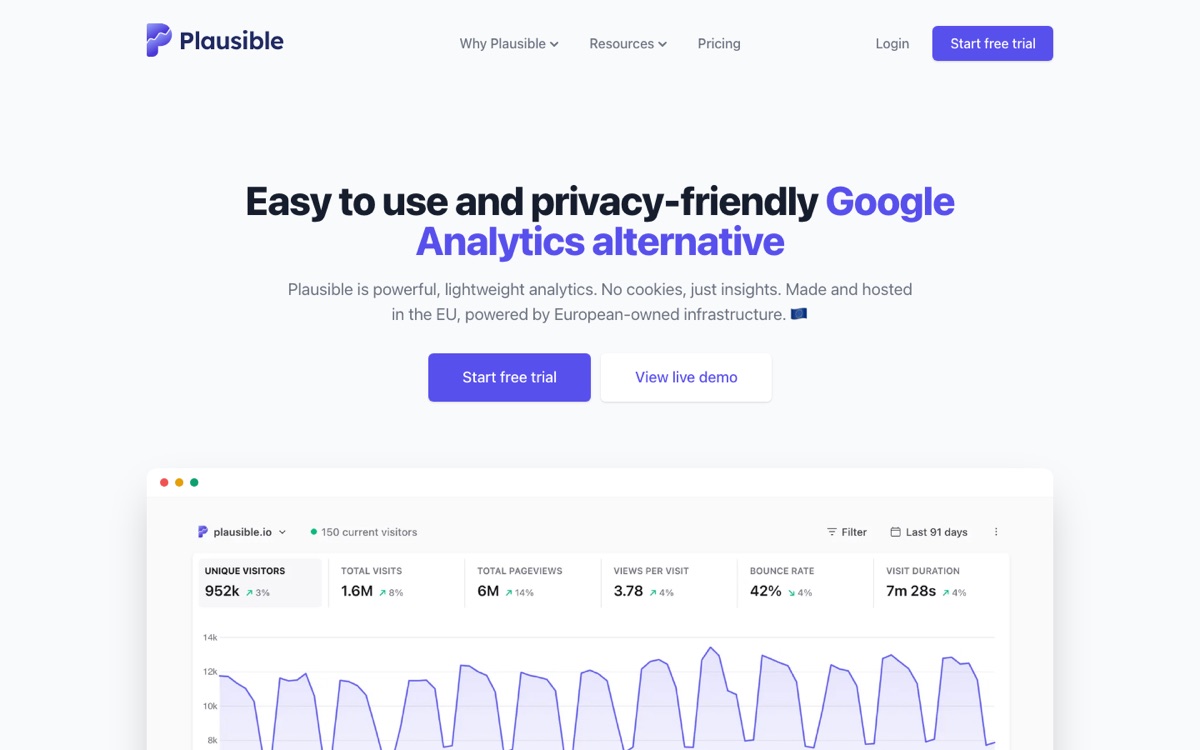
- Pick a tool that matches your privacy needs. Google Analytics is free but uses cookies, so in the EU and UK it needs consent. Privacy-friendly tools skip the banner:
| Tool | Starting price | Pageviews | Cookies | Trial |
|---|---|---|---|---|
| Plausible | $9/mo (Starter) | 10,000 | None | 30 days, no card |
| Fathom | $15/mo | 100,000, 50 sites | None | 7 days |
| Google Analytics 4 | Free | High limits | Yes, needs consent | Free |
Prices from plausible.io and usefathom.com, November 2026.
Both Plausible and Fathom say they need no cookie banner for analytics because they don't use cookies or track individuals. Plausible also keeps data on EU-owned servers. For one small site, Plausible Starter is cheapest. For an agency with many small client sites, Fathom's 50 sites on one plan works out better.
- Goals or events are set up for the actions that matter: form sent, button clicked, purchase completed.
Legal and privacy (20–24)
- Privacy policy page that lists what you collect, which tools process it (analytics, forms, email, payments) and how to contact you.
- Cookie banner, if you use cookies that need consent: Google Analytics, ad pixels, embedded YouTube or Maps. It must block those scripts until the visitor agrees.
- Terms of service for any site that sells, takes bookings or offers accounts.
- Imprint or company details where local law requires it, as in Germany and Austria.
- Links in the footer to every legal page, on every page.
Policy generators save time here. Termly has a free plan with one basic policy, a cookie banner and 10,000 banner views a month. Paid plans start at $10 per site per month on annual billing. iubenda starts at €4.99 per site per month on yearly billing for up to 25,000 pageviews, with a 14-day trial. Neither replaces a lawyer for complex cases, but both beat a copied policy from another site.
Forms and email (25–29)
- Every form sends, and the message reaches the right inbox. Test each form, including newsletter sign-ups.
- Spam protection is on: a honeypot field, Cloudflare Turnstile or a similar check.
- The thank-you message or page works, and it fires the analytics goal from point 19.
- Email on your domain is set up with SPF, DKIM and DMARC records, so messages from the site and from you don't land in spam. See professional email on your own domain.
- Contact details are correct everywhere: phone, email, address, map pin, social links.
Speed and mobile (30–36)
- PageSpeed Insights scores are reasonable on mobile, and Core Web Vitals pass.
- Images are compressed and served in WebP or AVIF, with width and height set to prevent layout jumps.
- Fonts are limited to the weights you actually use.
- The site works at 360 px wide. No sideways scrolling, no text running off the screen.
- Tap targets are big enough and not crammed together.
- Real devices tested: at least one iPhone and one Android phone, in Safari and Chrome.
- Favicon and touch icon are set, and the 404 page exists and links home.
Backups and handover (37–40)
- Automatic backups run, daily if the site changes often. Check that you can actually restore one. Most hosts include backups.
- A copy lives somewhere else than the host: an export, a Git repository or a download.
- Logins are stored safely in a password manager, and the client has their own admin account.
- Uptime monitoring is on, so you hear about downtime before customers do. Free monitors check every few minutes and email you.
After launch
Check Search Console a week later for indexing errors. Look at analytics after a month to see which pages people actually visit. Keep plugins and builder versions updated. That's most of the ongoing work for a small site.
Our launch toolkit lists the tools for each step of this checklist.
FAQ
What should I check before launching a website?
Check eight areas: domain and DNS, SSL and redirects, search setup, analytics, legal pages, forms and email, speed and mobile, and backups. The most common launch mistakes are a leftover noindex or robots.txt block from staging, a contact form that sends nowhere, and missing redirects from the old site's URLs.
How do I make sure Google indexes my new website?
Remove any noindex setting or "Discourage search engines" box, and make sure robots.txt doesn't say "Disallow: /". Then verify the site in Google Search Console and submit your sitemap. Check Search Console about a week later for indexing errors. Bing Webmaster Tools can import the same setup in a couple of clicks.
Do I need a cookie banner on my website?
You need one if the site uses cookies that require consent, such as Google Analytics, ad pixels or embedded YouTube videos and maps, especially for visitors in the EU and UK. Cookieless analytics like Plausible and Fathom say they don't need a banner for analytics, because they don't use cookies or track individuals.
Which privacy-friendly analytics tool is cheapest?
As of November 2026, Plausible Starter costs $9 a month for 10,000 pageviews, with a 30-day trial and no card required. Fathom starts at $15 a month for 100,000 pageviews and includes 50 sites on every plan, with a 7-day trial. Google Analytics is free but uses cookies, so it needs consent in the EU.
How do I create a privacy policy for a small website?
A policy generator is the quickest route. As of November 2026, Termly has a free plan with one basic policy, a cookie banner and 10,000 banner views a month, and paid plans from $10 per site per month yearly. iubenda starts at €4.99 per site per month yearly, with a 14-day trial.
How long does a website launch check take?
Running through all 40 points takes about three to four hours for a small site. Domain, SSL and analytics take under an hour together. Speed and mobile testing take the longest, around 45 minutes, because you should open the site on at least one iPhone and one Android phone, not just a resized browser window.
Bottom line
A launch goes wrong in boring ways: a forgotten noindex, a form that sends nowhere, a padlock missing on one page. Work through the 40 points the day before you go live, test forms and phones by hand, and set up Search Console, analytics and backups before you announce the site. Then you can spend launch day on the announcement instead of fixes.